Comparing Backtests
Comparing backtests can be very useful in determining which of your models will perform the best for a certain scenario in the market.
How to
Step 1: Navigate to Backtests Page
On the dashboard, open the model that you would like to be in your backtest comparison. Once you've selected your model of choice, navigate to the Backtests tab.
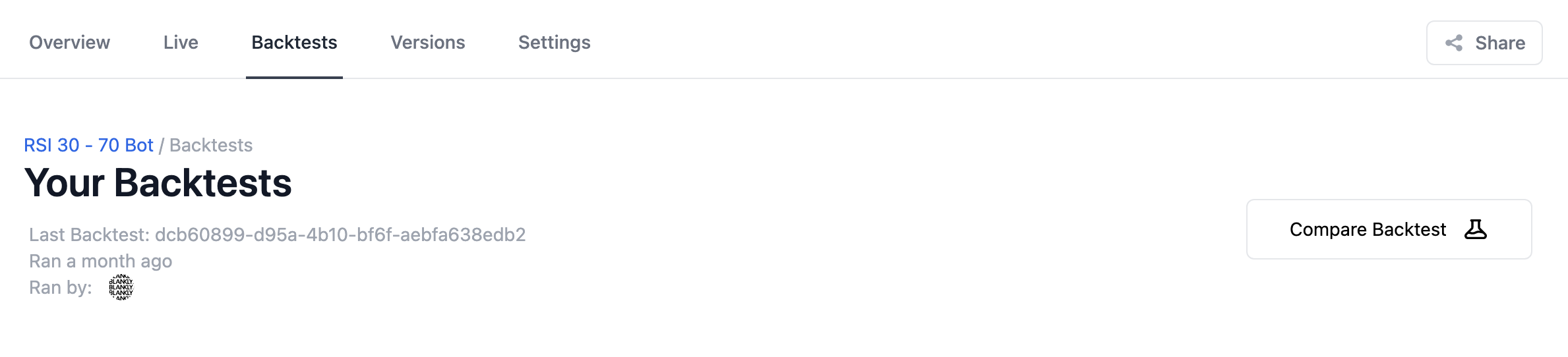
Step 2: Comparison Configuration
Default
To open up the default comparison configuration, click the Compare Backtest button. All of your models are listed across the top, and you may choose any backtests within any model to compare.
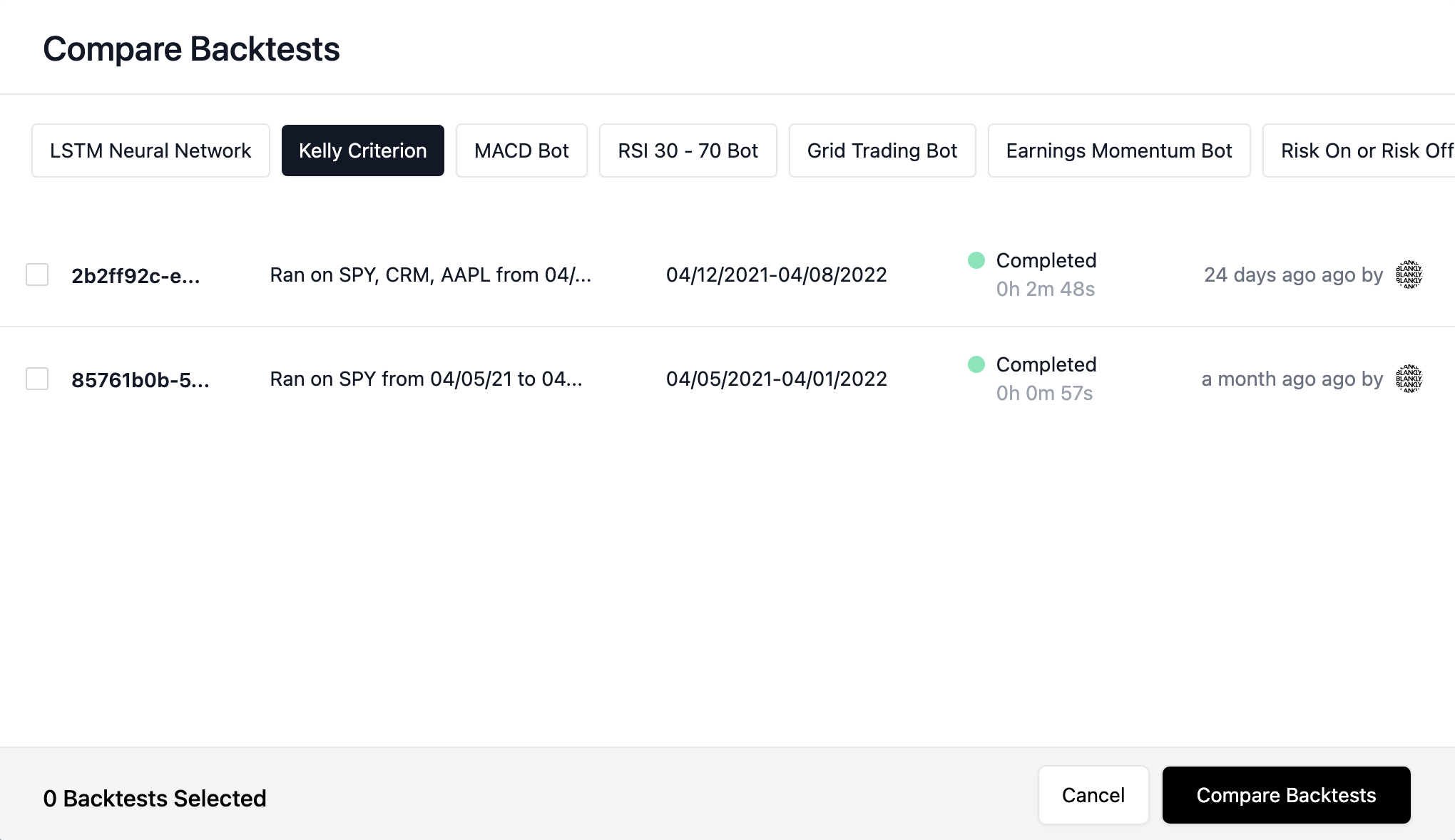
Note: you must select at least 2 backtests (up to 8 backtests).
Through a Backtest
You can also open up the comparison configuration with a pre-selected backtest. To do this, click the three dots on the right side of any backtest and select Compare This Backtest. This will open up the comparison configuration with the backtest already selected.

Step 3: Add on More Backtests
To add on more backtests while already comparing backtests, click the Add More Backtests button on the Comparing Backtests page to open the comparison configuration.
